Data view
Data view puts project structure and record editing in one workspace.
Open Data view to see how tables relate before you change their records. The object browser, table browser, and records grid keep the current table in context.
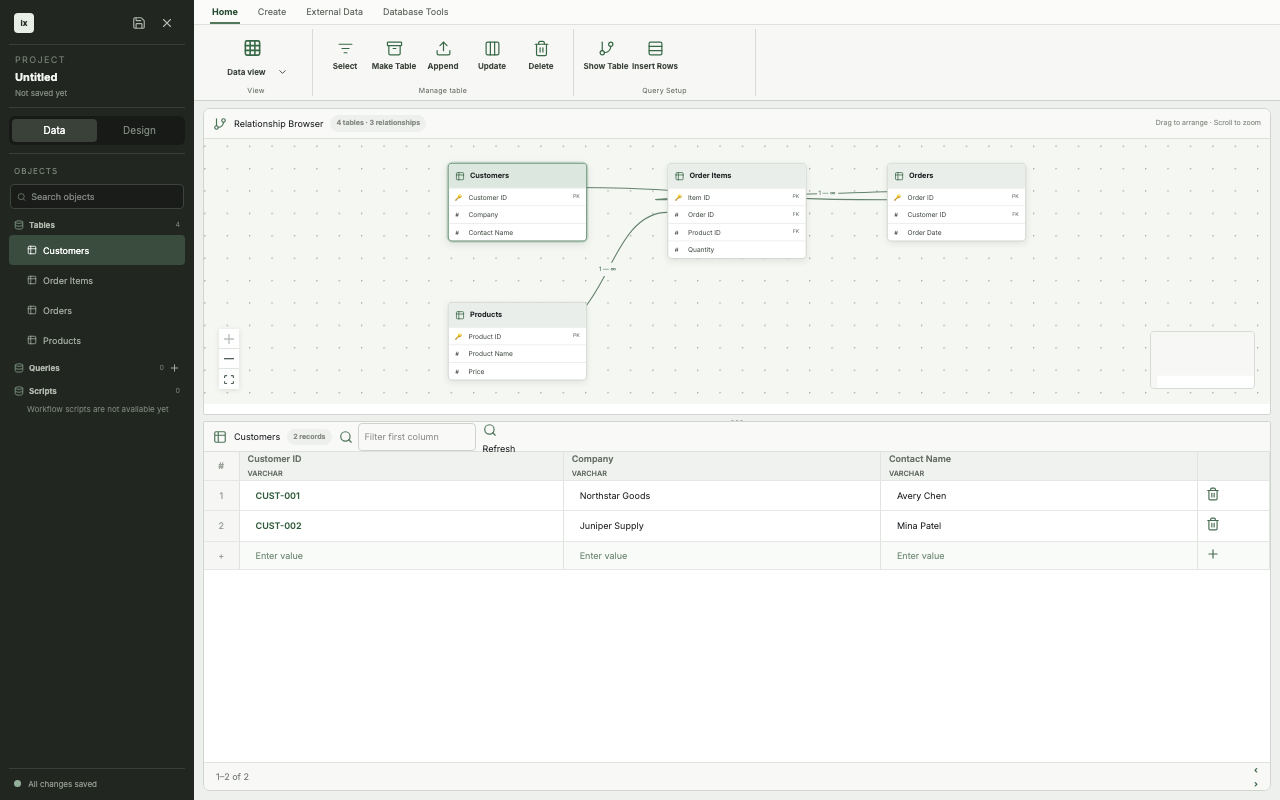
Object browser
The object browser groups tables, saved queries, and SQL scripts in the project sidebar. Select a table to make it active. Use the search field to narrow a larger project by object name.
Each table entry includes its record count. Queries and SQL scripts are visible in the current app, but their editors and execution flows are not implemented.
:::note TODO
Document query editing, SQL execution, and object creation when those actions are implemented.
:::
Table browser
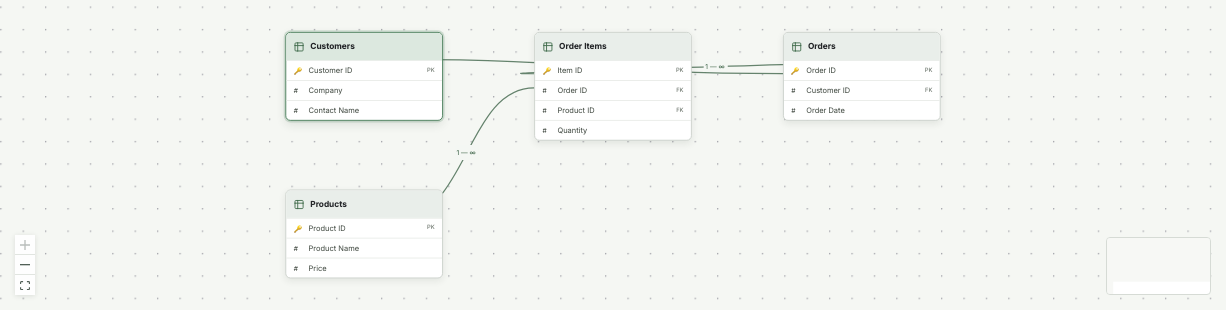
The table browser draws each table as a node with its fields. Primary and foreign keys show how records connect across the project. You can pan, zoom, and arrange the canvas while the records grid stays available below it.
Selecting Orders keeps the same table active in the object browser, relationship canvas, and records grid. That shared selection prevents the diagram and data editor from drifting into different contexts.
Records grid
The records grid displays fields as columns and records as rows. Enter values in the final draft row to add a record without opening another screen.
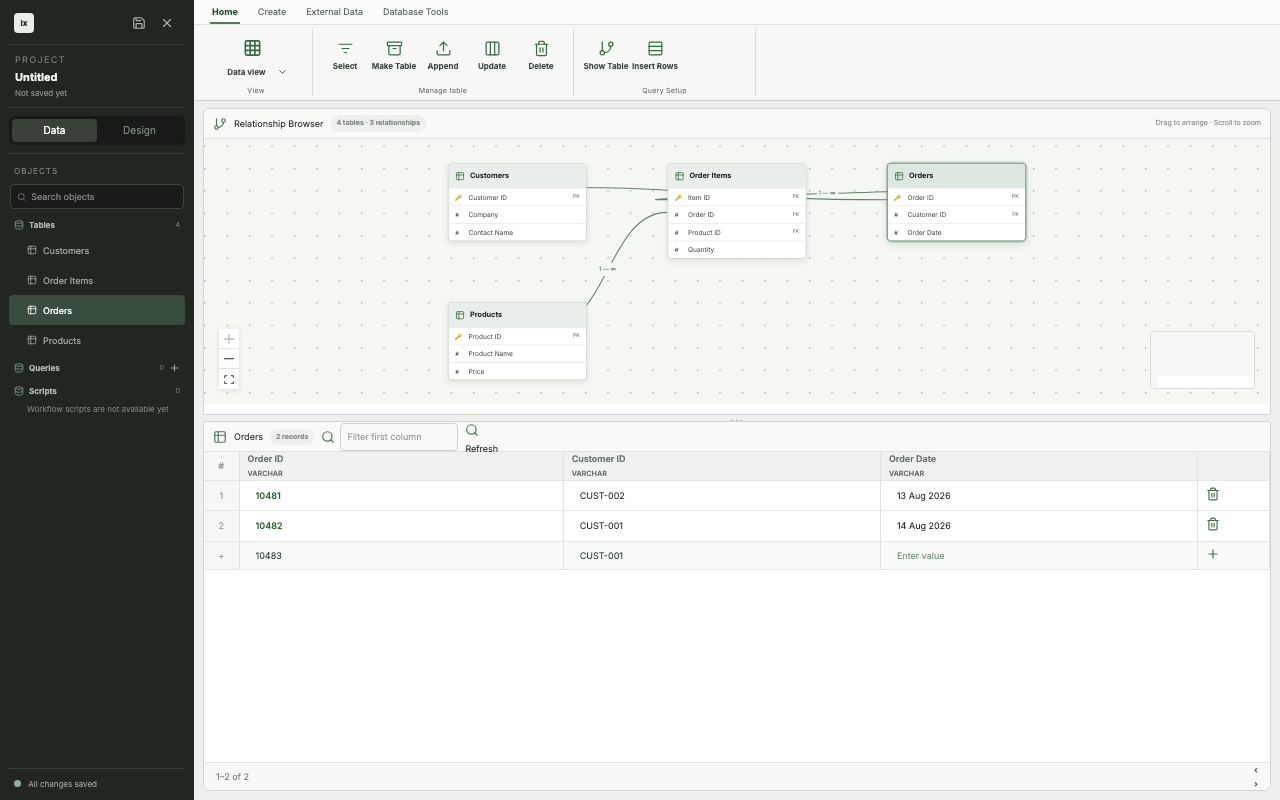
The screenshot shows a draft order with ORD-10483 and CUST-001. The active row stays aligned with the fields above it so you can compare the new values with existing records.
:::note TODO
Document validation, persistence, sorting, filtering, and record deletion when those behaviors are implemented.
:::
Ribbon commands
The ribbon groups workspace actions by task. Home stays. The View control switches Data view and Design view.
Query-action labels that do not run (Make Table, Append, Update, Delete, Show Table, Insert Rows) stay out of the ribbon until those commands exist.
:::note TODO
Add each real ribbon command when it performs an operation. Document its effect on project data.
:::